
Why Texture Size Matters
Part 6 of our Gaussian Splatting series a short, practical one. Part 4 covered file formats; this covers the texture rules that make those exports actually work.
What did we discover about the 2K texture limit?
When you take a SketchUp file and export it as an OBJ or GLB back into Lixel CyberColor Studio, you hit a 2K texture limit.
What does that mean? Every texture in your model needs to be below 2K resolution before it crosses over.
2. How does texture size affect the imported model?
Simply: if you import a model carrying textures over 2K, those textures won't import at all. The surface arrives blank white or black, where your material should have been.
So check before you export from SketchUp that your textures are below 2K. Better still: if you're under the impression that at any stage you might bring your model into Lixel CyberColor Studio, make sure the textures you use are below 2K from the start.
3. What should designers check before exporting from SketchUp?
Start low. When you're pulling from a texture library; Fab.com from Epic Games, the SketchUp Texture Club, or Poliigon import the lowest 1K versions as your starting point. Your model stays light and responsive in SketchUp because you're not carrying too many high-resolution textures, and nothing breaks on export.
Our standing rule from part 4 applies here too: 1,000 × 1,000 pixels is enough for anything short of a render printed at A2 or larger.
And check your preferences: SketchUp's "use maximum texture size" setting (in Preferences) controls whether textures come in at full 2K or 4K resolution. Leave it switched off so oversized textures aren't imported at full weight in the first place.
4. How do you clean up a downloaded 3D Warehouse model?
This is an interesting discussion, so let's start with the tools SketchUp gives you natively.
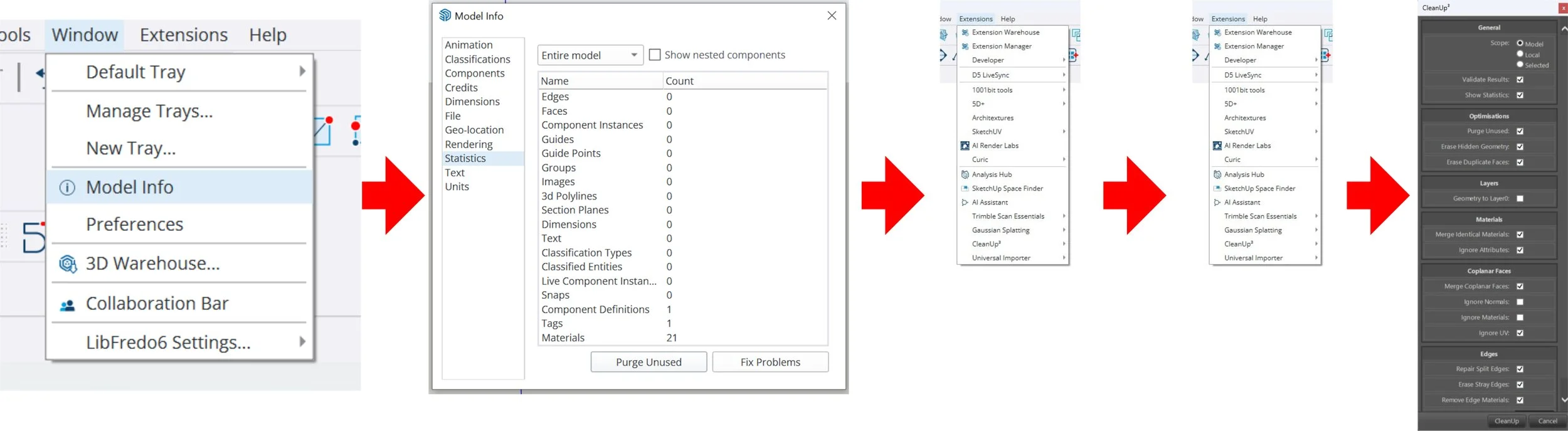
Go to the Window menu and click Model Info, then Statistics. At the bottom right sit two buttons: Purge Unused on the left and Fix Problems on the right.
Click Purge Unused and SketchUp starts cleaning without destroying any of your visible, finished geometry. It cleans up your styles, your tags, your unused textures, and unused components in your library. By trimming the model this way, the file size shrinks and the visible geometry is optimised your model becomes faster, more responsive, more effectively shared between different software, and lighter on your computer and cloud storage.
The second method: go to the Extension Warehouse and download CleanUp³ by the developer ThomThom (it requires his TT_Lib library both are on the Extension Warehouse and also downloadable from the SketchUcation website).
The wonderful thing about CleanUp³ is the range of cleaning methods, each described contextually as you hover over the sub-menu. In short, it fixes duplicate faces and duplicate component definition names, purges unused items, erases hidden geometry, lonely edges, and duplicate faces, removes edge materials, repairs split edges, smooths edges where preferred, puts edges and faces back to Layer0 so the information reads easier for the computer, merges identical materials, and merges connected co-planar faces anything triangulated becomes a clean square face again.
We've seen it compress a file to a third of its original size on complex 3D Warehouse downloads. And that's where it really earns its place: it lets you use almost any model you find on the 3D Warehouse, even ones authored in software that doesn't suit SketchUp's face-based modelling think 3ds Max, with its huge triangulated meshes. Those don't natively behave well in SketchUp, but the cleanup transforms the geometry into something much more SketchUp-like.
5. What is your current best-practice checklist before exporting?
5.1 Save your current file under a different name, something like version 0.1, so the untouched state is preserved.
5.2 Window → Model Info → Statistics → click Purge Unused, then Fix Problems.
5.3 Run CleanUp³ with its native preset tasks and see how far it gets.
5.4 Tick any additional boxes for the extra cleaning methods your model needs.
5.5 Check texture sizes: everything below 2K, ideally 1K.
From there, your textures and geometry are as clean as they can be and the model is ready to travel to Lixel CyberColor Studio, or anywhere else. For questions, email info@studiojdb.com.
Next in series: Digital Twins For Retail Design